How It Works
Everything you need to know about using Sidecall — from your first call to advanced features.
🚀 Getting Started
Installation
- Install from Chrome Web StoreOpen Sidecall in the Chrome Web Store and click "Add to Chrome". The extension works in any Chromium-based browser (Chrome, Edge, Brave, Opera).
- Open the Side PanelClick the Sidecall icon in your browser toolbar. The extension opens in Chrome's side panel — it stays accessible while you browse.
- Get Your Unique IDYour ID is generated automatically and appears at the top of the Call tab. This is your "phone number" in Sidecall. Share it with anyone you want to communicate with.
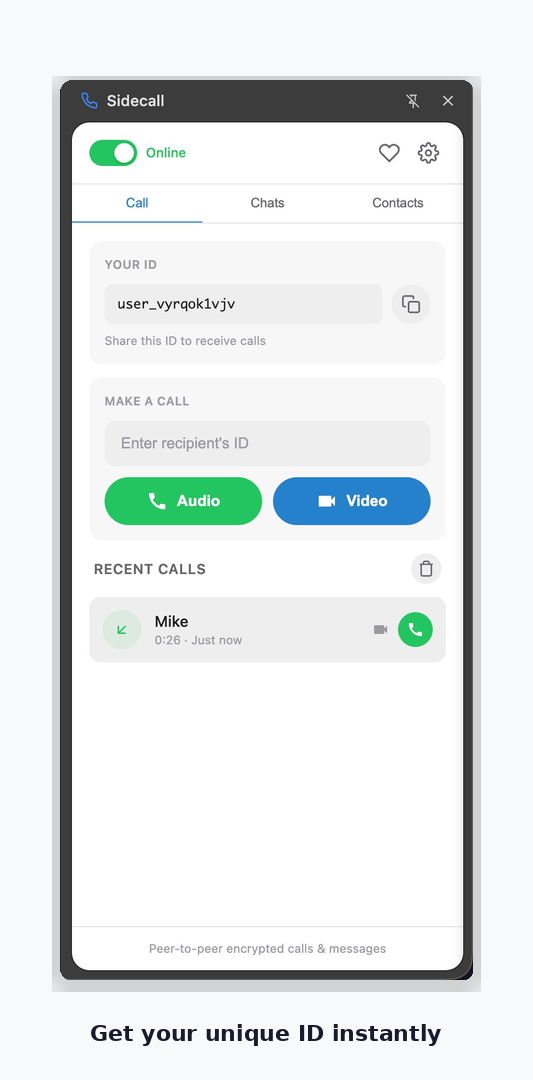
💡 No account needed. You don't need an email, phone number, or password. Your ID is all you need to start making calls and sending messages.
📞 Making Calls
Quick Call (by ID)
The fastest way to call someone:
- Get their IDAsk your contact to share their Sidecall ID with you (they can copy it from their extension).
- Paste itGo to the Call tab, paste the ID into the "Enter recipient's ID" field.
- Choose call typeTap Audio for a voice call or Video for a video call. Your contact will receive a notification.
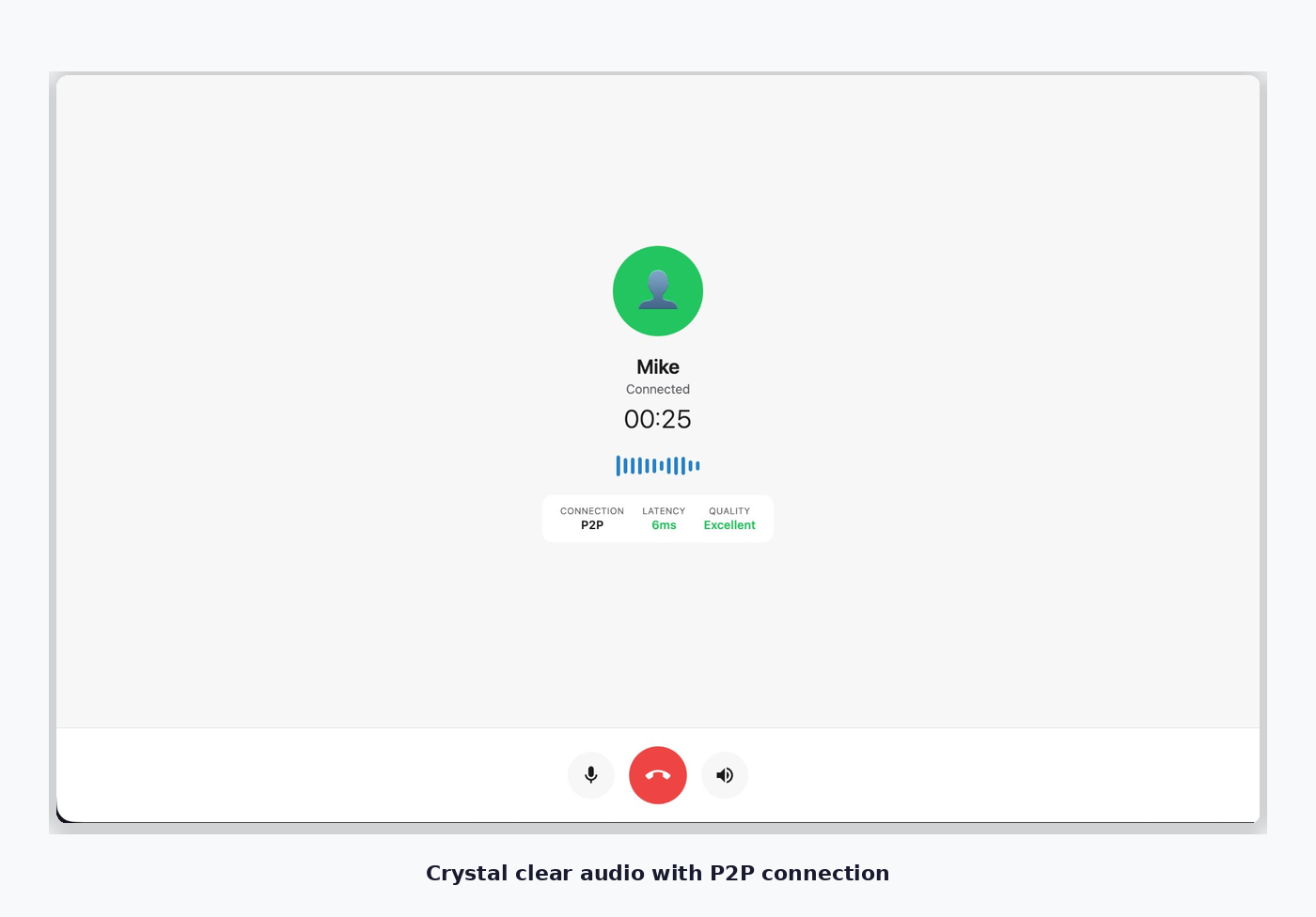
🔒 P2P by default. Your call connects directly between browsers — no server in the middle. You'll see "P2P" and connection quality (Excellent/Good/Fair) in the call screen.
Call from Contacts
If you've saved someone as a contact, you can call them directly from the Contacts tab — just tap the phone or video icon next to their name. No need to paste IDs every time.
Receiving Calls
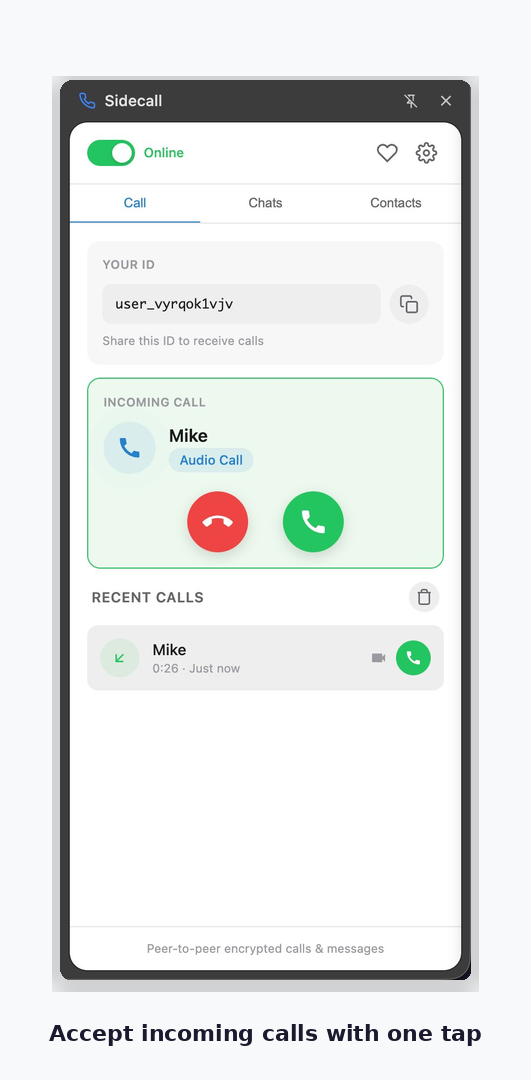
When someone calls you, you'll see an incoming call notification with their name (if they're in your contacts) or their ID. Tap the green button to accept or the red button to decline.
During a Call
Once connected, the call opens in a separate browser tab with these controls:
- 🎤 Mute/Unmute — toggle your microphone
- 📹 Camera — toggle your camera on/off (video calls only)
- 🖥️ Screen Share — share your screen with your contact (video calls only)
- 🔊 Volume — adjust the volume of the incoming audio
- 📞 End Call — the red button ends the call
Audio vs Video Calls
Sidecall treats audio and video as separate call modes for maximum stability. You choose the mode when you initiate the call. During a video call, you can turn your camera off (the other person sees a black screen), but the call remains in video mode. If you want to switch to pure audio, end the call and start a new audio call.
💡 Why separate modes? Switching between audio and video mid-call can cause instability in WebRTC connections. By keeping them separate, Sidecall ensures consistent call quality throughout.
👥 Contacts
Adding a Contact
- Go to Contacts tabTap "Contacts" in the navigation.
- Tap the + buttonClick the "+" icon in the top right, or tap "Add Contact" if your list is empty.
- Enter their detailsPaste their User ID (required) and give them a name (optional but recommended).
- SaveTap "Save" and they'll appear in your contact list.
Online Status
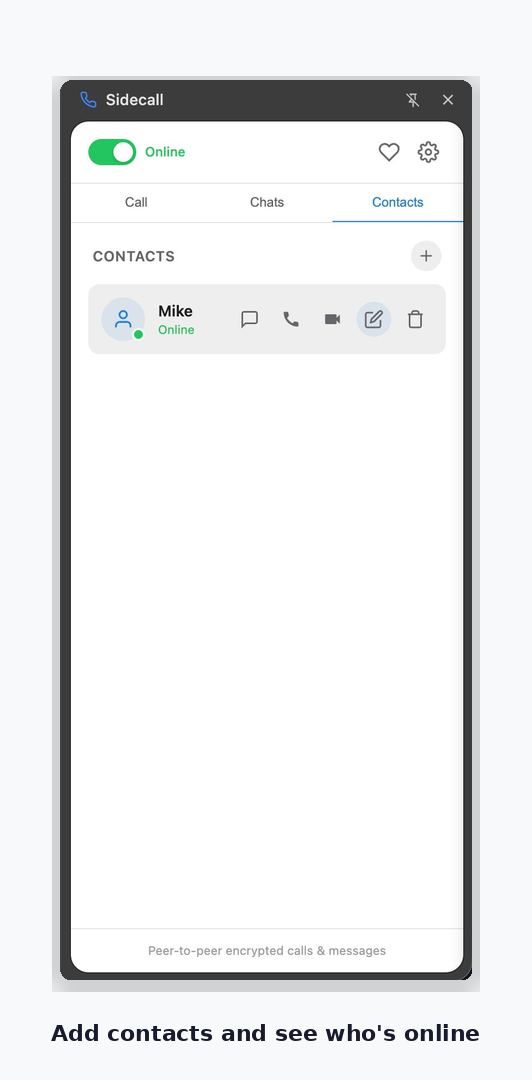
A green dot next to a contact's name means they're currently online and available for calls. When you see "Offline", they're not connected — but you can still send them a message that will be delivered when they come back online.
Contact Actions
Each contact has quick action icons:
- 💬 Open chat
- 📞 Start audio call
- 📹 Start video call
- ✏️ Edit contact name
- 🗑️ Delete contact
💬 Messaging
Sending Messages
You can send encrypted text messages to any contact. Go to the Chats tab to see your conversations, or tap the chat icon next to a contact's name.
Type your message and tap Send (or press Enter). Messages are encrypted end-to-end using ECDH key exchange and AES-GCM encryption — only you and your contact can read them.
Offline Messages
If your contact is offline when you send a message, it's stored temporarily on the signaling server (encrypted) and delivered when they come back online. Offline messages are automatically deleted after 7 days if not delivered.
Message Storage
All your messages are stored locally in your browser using Chrome's storage API. They never leave your device (except when you send them to a contact). If you uninstall the extension, your message history is permanently deleted.
⚠️ No cloud backup. Since messages are stored only on your device, there's no way to recover them if you uninstall the extension or clear your browser data. Export important conversations before making changes.
⚙️ Settings
Access Settings by tapping the gear icon (⚙️) in the top right corner of the extension. Here's what you can configure:
Online/Offline Toggle
The green toggle at the top controls your online status. When turned off, other users won't see you as online and can't call you. However, you'll still receive messages that will be waiting for you when you go back online.
Theme
Switch between Light and Dark mode. Your preference is saved and persists across sessions.
TURN Relay
Toggle the TURN relay feature on or off. When enabled (default), your calls will use TURN relay servers when a direct P2P connection can't be established. TURN is free for all users. See the Connection Types section for more details on P2P, STUN, and TURN.
Sound
Enable or disable call sounds (ringtone, call connected/ended tones).
Report a Problem
Found a bug? Tap "Report a Problem" to send us a description. Your report is sent to our team via Telegram and includes basic diagnostic info (no personal data).
User Guide
Opens this guide page in a new tab.
Replay Tour
Restart the interactive onboarding tour that walks you through the main features of the extension.
🛡️ Connection Types: P2P, STUN, TURN
When you make a call in Sidecall, you'll see a connection type indicator (P2P, STUN, or TURN) on the call screen. Here's what each one means and how they work together.
🟢 P2P (Peer-to-Peer)
The fastest and most private option. Your audio and video stream directly from your browser to your contact's browser, without any server in between. This works when both of you are on networks that allow direct connections.
P2P gives you the lowest latency (often under 50ms), no server costs, and maximum privacy — your call data never touches any third-party server.
🟡 STUN (Session Traversal Utilities for NAT)
A helper that enables P2P in most cases. Most home and office networks hide your computer behind a router using something called NAT (Network Address Translation). NAT makes it hard for two computers to find each other directly.
STUN servers help your browser discover its public address so it can establish a P2P connection with your contact. STUN servers don't relay your call — they just help the two browsers find each other. Once connected, the call is fully P2P.
About 80% of all Sidecall calls work via STUN-assisted P2P. Sidecall uses Google's free public STUN servers.
🔴 TURN (Traversal Using Relays around NAT)
A relay server that takes over when P2P doesn't work. Some networks actively block direct connections — corporate firewalls, strict NAT configurations, hotel and airport Wi-Fi, some mobile carriers, or networks in countries with internet restrictions.
When P2P fails, TURN servers act as a relay: your encrypted call goes through the TURN server to your contact and back. This adds slight latency but makes the call possible when nothing else works.
Sidecall operates its own TURN servers in three regions (Europe, North America, Asia) so that calls connect quickly no matter where you and your contact are located.
💡 How Sidecall picks the connection type: WebRTC always tries P2P first (with STUN's help). Only if direct connection fails does it fall back to TURN. You'll see "P2P" in most cases, "TURN" only when needed.
Is TURN still private?
Yes. Even when your call goes through a TURN relay server, it remains end-to-end encrypted with DTLS-SRTP. The relay server can see that encrypted data is flowing between two users, but it cannot decrypt, listen to, or read your calls or messages. Think of it like a sealed envelope passing through a mail carrier — they transport it but can't open it.
TURN is free for everyone
TURN relay is enabled by default and free for all Sidecall users. You don't need to subscribe or pay anything. The TURN servers are funded by Sidecall and supporters of the project.
If you prefer pure P2P only (and accept that calls won't connect on restrictive networks), you can disable TURN in Settings → Connection.
How to disable TURN (P2P-only mode)
- Open SettingsTap the gear icon (⚙️) in the extension header.
- Find Connection settingsScroll to the "Connection" section.
- Toggle TURN Relay offCalls will only attempt P2P connections. If P2P fails, the call won't connect.
⚠️ Disabling TURN may break calls on restrictive networks — corporate firewalls, hotel Wi-Fi, or strict mobile carriers. We recommend leaving TURN enabled unless you have a specific reason to disable it.
🔐 Security & Verification
End-to-End Encryption
All calls use DTLS-SRTP encryption (a WebRTC standard). Text messages use ECDH P-256 key exchange with AES-GCM encryption. Encryption happens entirely in your browser — the signaling server never has access to your encryption keys or message content.
Emoji Verification
Sidecall generates a unique emoji fingerprint for each contact relationship. This fingerprint is derived from your shared encryption keys. To verify that nobody is intercepting your communication:
- Open the security modalTap the shield/lock icon in your chat with a contact.
- Compare emoji codesYou and your contact should each see the same sequence of emojis. Compare them over a different channel (phone call, in person, another messenger).
- Mark as verifiedIf the codes match, tap "Mark as Verified". You'll see a verification badge next to that contact.
✅ If codes match — your connection is secure. No one is intercepting your messages.
⚠️ If codes don't match — do not proceed. This could indicate a man-in-the-middle attack. Delete the contact and re-add them.
Blocking Users
If you receive unwanted calls or messages, you can block a user from the security modal. Blocked users cannot call or message you. You can unblock them later from Settings → Blocked Users.
🔧 Troubleshooting
Call stuck on "Connecting..."
This usually means the P2P connection can't be established. Try these steps:
- Make sure both you and your contact have a stable internet connection
- Check that the extension shows "Online" (green toggle) for both users
- Enable TURN relay in Settings — this solves most connectivity issues, especially on restrictive networks
- If using a VPN, try disabling it — some VPNs block WebRTC entirely
- Try a different network (e.g., switch from Wi-Fi to mobile hotspot)
No sound during a call
- Check that your microphone isn't muted (look at the mic button in the call screen)
- Make sure you granted microphone permission when the browser asked
- Check your system volume and make sure the correct microphone is selected in your OS settings
- Try ending the call and calling again — sometimes the audio track needs to be re-established
- For video calls: audio is played through the video element. Make sure the volume slider in the call screen isn't set to zero
Contact shows "Offline" but they're online
- They might have turned off the Online toggle in their extension
- Their browser might have suspended the extension's background process — ask them to reopen the side panel
- There might be a brief delay in status updates — wait a few seconds and check again
Messages not delivered
- If your contact is offline, messages are queued and delivered when they come back (up to 7 days)
- Make sure you're connected (Online toggle is green)
- Check if you've been blocked by the recipient
"Camera access denied" error
Your browser needs permission to access your camera and microphone. Click the lock icon (🔒) in the browser address bar → Site settings → allow Camera and Microphone for the extension page.
Extension not responding
Try these steps in order:
- Close and reopen the side panel
- Go to chrome://extensions, find Sidecall, and click the reload button (🔄)
- If nothing works, remove and reinstall the extension (note: this will delete your local data including contacts and messages)
💡 Still having issues? Use the "Report a Problem" button in Settings to send us diagnostic information. We'll get back to you as soon as possible.